Welcome to the
ImageEn Color Frequency Analysis Demo Application using the
TImageEnView component from
ImageEn in
Embarcadero Delphi!
This demo application uses an improved algorithm to extract the n most frequent colors in an image presented on this blog in the last month
here. This powerful tool is designed to analyze the most frequent colors in an image and allows users to manipulate these colors in various ways. Whether you're a developer looking to integrate color analysis into your own applications or just someone interested in exploring the color properties of images, this application provides a robust platform to meet your needs.
Load and Display Images
Easily load images into the application using the "Load Image" button. The application supports a wide range of image formats thanks to the ImageEn library:
Analyze Most Frequent Colors
The application automatically calculates the most frequent colors in the whole loaded image or a selected area within the image. Users can specify the number of most frequent colors to search for using a trackbar control:
The n most frequent colors found are displayed in a Color List:
Highlight and Manipulate Colors
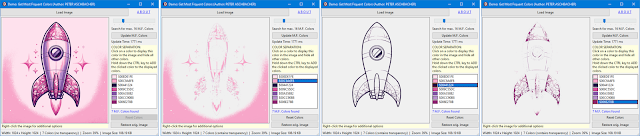
• Highlight and separate Selected Colors: Users can click on a color in the color list to highlight it in the image (while all other colors are hidden). If the CTRL key is held while clicking, multiple colors can be selected and highlighted.
Here is an example of an original image (left-most) and some of its color separations:
• Reset Colors: Restore all colors to their original opacity:
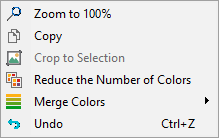
• Merge Similar Colors: The application can merge similar colors into a specified number of fundamental colors using a k-means clustering algorithm (right-click the image).
• Reduce the number of Colors: The application can repeatedly reduce the number of colors in the image using an intelligent algorithm (Kohonen or Median cut) (right-click the image):
Here is an example of repeatedly clicking the "Reduce the Number of Colors" menu item, achieving interesting color effects:
The "Merge Colors" sub-menu has 3 options to merge the image colors, each to a different maximum number of colors using an advanced k-means clustering algorithm:
Here is an example of repeatedly clicking the "Merge Colors to max. 8" menu item, achieving other interesting color effects:
Here is another example of repeatedly clicking the "Merge Colors to max. 32" menu item, achieving other slightly different color effects:
You can now experiment with different combinations of the color-manipulation effects.
User-Friendly Interface
The application includes a status bar that provides detailed information about the image, such as its dimensions, color count, zoom level, and image size (which varies depending on the included number of colors after each color manipulation):
Behind the Scenes: Key Procedures and Functions
Loading an Image
procedure TForm1.ButtonLoadImageClick(Sender: TObject);
begin
with ImageEnView1.IO do
LoadFromFile( ExecuteOpenDialog() );
end;
Analyzing Most Frequent Colors
The GetMostFrequentColors function calculates the most frequent colors in the image:
function GetMostFrequentColors(Image: TImageEnView; Count: Integer): TArray<TColor>;
// get the most frequent colors in a TImageEnView image or in the selected area
var
Bitmap: Vcl.Graphics.TBitmap;
x, y: Integer;
Color: TColor;
Dict: TDictionary<TColor, Integer>;
PairList: TList<TPair<TColor, Integer>>;
Pair: TPair<TColor, Integer>;
StartX, StartY, EndX, EndY: Integer;
begin
Dict := TDictionary<TColor, Integer>.Create;
try
// Use the internal bitmap of ImageEnView directly
Bitmap := Image.IEBitmap.VclBitmap;
// Determine the area to process (entire image or selection)
if Image.Selected then
begin
StartX := Image.SelX1;
StartY := Image.SelY1;
EndX := Image.SelX2 - 1;
EndY := Image.SelY2 - 1;
end
else
begin
StartX := 0;
StartY := 0;
EndX := Bitmap.Width - 1;
EndY := Bitmap.Height - 1;
end;
// Process each pixel to calculate color frequency
for y := StartY to EndY do
begin
for x := StartX to EndX do
begin
Color := Bitmap.Canvas.Pixels[x, y];
if Dict.ContainsKey(Color) then
Dict[Color] := Dict[Color] + 1
else
Dict.Add(Color, 1);
end;
end;
// Prepare to find the most common colors
PairList := TList<TPair<TColor, Integer>>.Create;
try
for Pair in Dict do
PairList.Add(Pair);
// Sort by frequency:
PairList.Sort(System.Generics.Defaults.TComparer<TPair<TColor, Integer>>.Construct(
function(const L, R: TPair<TColor, Integer>): Integer
begin
Result := R.Value - L.Value;
end));
// Extract the top 'Count' colors:
SetLength(Result, PAMin(Count, PairList.Count));
for x := 0 to High(Result) do
begin
Result[x] := PairList[x].Key;
// Log each color to CodeSite for debugging:
//CodeSite.SendColor('Common Color ' + IntToStr(x+1) + ': ', PairList[x].Key);
end;
finally
PairList.Free;
end;
finally
Dict.Free;
end;
end;
Highlighting Selected Colors
The HighlightSelectedColors procedure makes non-selected colors transparent:
procedure TForm1.HighlightSelectedColors;
var
x, y: Integer;
IEBitmap: TIEBitmap;
AlphaBitmap: TIEBitmap;
PixelColor: TRGB;
Red, Green, Blue: Byte;
AlphaScanLine: PByteArray;
IsSelected: Boolean;
begin
IEBitmap := ImageEnView1.IEBitmap; // Reference to the ImageEnView bitmap
// Ensure the bitmap has an alpha channel
if not IEBitmap.HasAlphaChannel then
IEBitmap.AlphaChannel; // Accessing AlphaChannel property will create it if it doesn't exist
AlphaBitmap := IEBitmap.AlphaChannel; // Reference the alpha channel bitmap
// Process each pixel to make non-selected colors transparent
for y := 0 to IEBitmap.Height - 1 do
begin
AlphaScanLine := AlphaBitmap.ScanLine[y];
for x := 0 to IEBitmap.Width - 1 do
begin
// Access the pixel color as TRGB
PixelColor := IEBitmap.Pixels_ie24RGB[x, y];
IsSelected := False;
for var SelectedColor in SelectedColors do
begin
// Extract the RGB components from the selected color
Red := GetRValue(SelectedColor);
Green := GetGValue(SelectedColor);
Blue := GetBValue(SelectedColor);
// Compare each color component
if (PixelColor.r = Red) and (PixelColor.g = Green) and (PixelColor.b = Blue) then
begin
IsSelected := True;
Break;
end;
end;
if IsSelected then
AlphaScanLine[x] := 255 // Make pixel fully opaque
else
AlphaScanLine[x] := 0; // Make pixel fully transparent
end;
end;
// Ensure the alpha channel is in sync
IEBitmap.SyncAlphaChannel;
// Update the ImageEnView
ImageEnView1.Update;
end;
Merging Similar Colors
The MergeColors procedure uses k-means clustering to merge similar colors:
procedure TForm1.MergeColors(ImageEnView: TImageEnView; NumColors: Integer);
var
PixelColors: TArray<TColor>;
ClusterCenters: TArray<TColorCluster>;
ClusterMap: TDictionary<TColor, TColor>;
x, y, i, j: Integer;
Bitmap: TIEBitmap;
Color: TColor;
BestCluster: Integer;
MinDist, Dist: Double;
function ColorDistance(C1, C2: TColor): Double;
var
R1, G1, B1, R2, G2, B2: Byte;
begin
R1 := GetRValue(C1);
G1 := GetGValue(C1);
B1 := GetBValue(C1);
R2 := GetRValue(C2);
G2 := GetGValue(C2);
B2 := GetBValue(C2);
Result := Sqrt(Sqr(R1 - R2) + Sqr(G1 - G2) + Sqr(B1 - B2));
end;
function GetAverageColor(Colors: TArray<TColor>): TColor;
var
TotalR, TotalG, TotalB: Double;
i: Integer;
begin
TotalR := 0;
TotalG := 0;
TotalB := 0;
for i := 0 to High(Colors) do
begin
TotalR := TotalR + GetRValue(Colors[i]);
TotalG := TotalG + GetGValue(Colors[i]);
TotalB := TotalB + GetBValue(Colors[i]);
end;
Result := RGB(Round(TotalR / Length(Colors)), Round(TotalG / Length(Colors)), Round(TotalB / Length(Colors)));
end;
procedure KMeansClusterColors;
var
i, j, k, Changed: Integer;
Clustered: array of TList<TColor>;
OldCenters: TArray<TColorCluster>;
begin
SetLength(ClusterCenters, NumColors);
SetLength(OldCenters, NumColors);
SetLength(Clustered, NumColors);
// Initialize clusters with random colors
Randomize;
for i := 0 to NumColors - 1 do
begin
ClusterCenters[i].Red := Random(256);
ClusterCenters[i].Green := Random(256);
ClusterCenters[i].Blue := Random(256);
ClusterCenters[i].Count := 0;
Clustered[i] := TList<TColor>.Create;
end;
repeat
// Clear clusters
for i := 0 to NumColors - 1 do
begin
Clustered[i].Clear;
OldCenters[i] := ClusterCenters[i];
end;
// Assign pixels to clusters
for i := 0 to High(PixelColors) do
begin
BestCluster := 0;
MinDist := ColorDistance(PixelColors[i], RGB(ClusterCenters[0].Red, ClusterCenters[0].Green, ClusterCenters[0].Blue));
for j := 1 to NumColors - 1 do
begin
Dist := ColorDistance(PixelColors[i], RGB(ClusterCenters[j].Red, ClusterCenters[j].Green, ClusterCenters[j].Blue));
if Dist < MinDist then
begin
MinDist := Dist;
BestCluster := j;
end;
end;
Clustered[BestCluster].Add(PixelColors[i]);
end;
// Recalculate cluster centers
for i := 0 to NumColors - 1 do
begin
if Clustered[i].Count > 0 then
begin
ClusterCenters[i].Red := GetRValue(GetAverageColor(Clustered[i].ToArray));
ClusterCenters[i].Green := GetGValue(GetAverageColor(Clustered[i].ToArray));
ClusterCenters[i].Blue := GetBValue(GetAverageColor(Clustered[i].ToArray));
end;
end;
// Check if clusters have changed
Changed := 0;
for i := 0 to NumColors - 1 do
begin
if (ClusterCenters[i].Red <> OldCenters[i].Red) or
(ClusterCenters[i].Green <> OldCenters[i].Green) or
(ClusterCenters[i].Blue <> OldCenters[i].Blue) then
Inc(Changed);
end;
until Changed = 0;
// Clean up
for i := 0 to NumColors - 1 do
Clustered[i].Free;
end;
begin
Bitmap := ImageEnView.IEBitmap;
SetLength(PixelColors, Bitmap.Width * Bitmap.Height);
// Extract pixel colors
for y := 0 to Bitmap.Height - 1 do
begin
for x := 0 to Bitmap.Width - 1 do
begin
PixelColors[y * Bitmap.Width + x] := RGBToTColor(Bitmap.Pixels_ie24RGB[x, y]);
end;
end;
// Perform k-means clustering
KMeansClusterColors;
// Create a map from old colors to new cluster centers
ClusterMap := TDictionary<TColor, TColor>.Create;
try
for i := 0 to High(PixelColors) do
begin
BestCluster := 0;
MinDist := ColorDistance(PixelColors[i], RGB(ClusterCenters[0].Red, ClusterCenters[0].Green, ClusterCenters[0].Blue));
for j := 1 to NumColors - 1 do
begin
Dist := ColorDistance(PixelColors[i], RGB(ClusterCenters[j].Red, ClusterCenters[j].Green, ClusterCenters[j].Blue));
if Dist < MinDist then
begin
MinDist := Dist;
BestCluster := j;
end;
end;
ClusterMap.AddOrSetValue(PixelColors[i], RGB(ClusterCenters[BestCluster].Red, ClusterCenters[BestCluster].Green, ClusterCenters[BestCluster].Blue));
end;
// Replace pixel colors with the nearest cluster center
for y := 0 to Bitmap.Height - 1 do
begin
for x := 0 to Bitmap.Width - 1 do
begin
Bitmap.Pixels_ie24RGB[x, y] := TColorToRGB(ClusterMap[RGBToTColor(Bitmap.Pixels_ie24RGB[x, y])]);
end;
end;
finally
ClusterMap.Free;
end;
// Update the display
ImageEnView.Update;
end; // end of: MergeColors
Reduce Colors
The ReduceColors procedure reduces the number of colors in the image using an intelligent algorithm (Kohonen or Median cut):
procedure TForm1.ReduceColors;
const
ColorThresholds: array[0..7] of Integer = (256, 128, 64, 32, 16, 8, 4, 2);
var
CC, i: Integer;
begin
IEGlobalSettings().ColorReductionAlgorithm := 0; // Kohonen algorithm
//IEGlobalSettings().ColorReductionAlgorithm := 1; // Median cut
IEGlobalSettings().ColorReductionQuality := 100; // maximum quality
//CodeSite.Send('IEGlobalSettings().ColorReductionAlgorithm', IEGlobalSettings().ColorReductionAlgorithm);
//CodeSite.Send('IEGlobalSettings().ColorReductionQuality', IEGlobalSettings().ColorReductionQuality);
CC := ImageEnView1.Proc.CalcImageNumColors();
for i := Low(ColorThresholds) to High(ColorThresholds) do
begin
if CC > ColorThresholds[i] then
begin
ImageEnView1.Proc.ConvertTo(ColorThresholds[i], ieOrdered);
Break; // Ensures it breaks the loop after applying the first valid conversion
end;
end;
ImageEnView1.Update;
end;
Conclusion
The ImageEn Color Frequency Analysis Demo Application provides a comprehensive toolset for analyzing and manipulating the colors in an image. Its features make it an excellent resource for developers, software engineers and hobbyists alike. Explore the capabilities of this application and see how it can enhance your image processing projects.
For more information, tutorials, and updates, visit the PA-Soft Blog. If you have any questions or feedback, feel free to contact me at
peter.aschbacher@pa-soft.com.
DOWNLOAD
All this is completely free, so please support me as I am in an extremely difficult situation right now, so I can continue to provide more advanced source code for you: